Set up your account
Follow these steps to create your Zonos account and complete setup:
Create your Zonos account
- Visit account.zonos.com/register.
- Fill in your details and select Shopify as your platform.
- Click Create account.
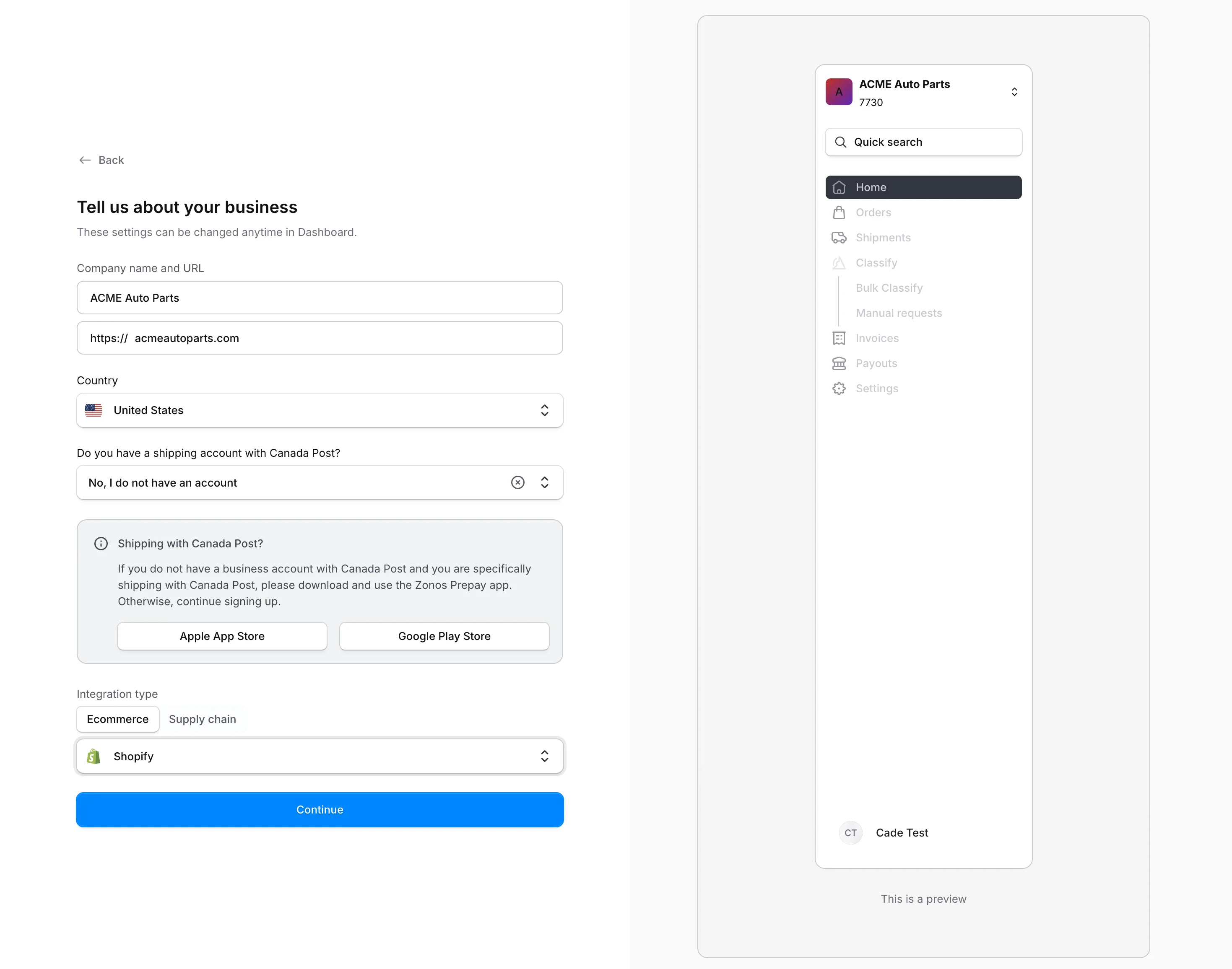
Choose your Shopify plan
- In the setup wizard, select your current Shopify plan.
- If you're on Grow, confirm you have access to the Carrier Service API.
- Enter your Shopify domain.
- Click Install and subscribe on Shopify to approve the app install and subscription in Shopify.
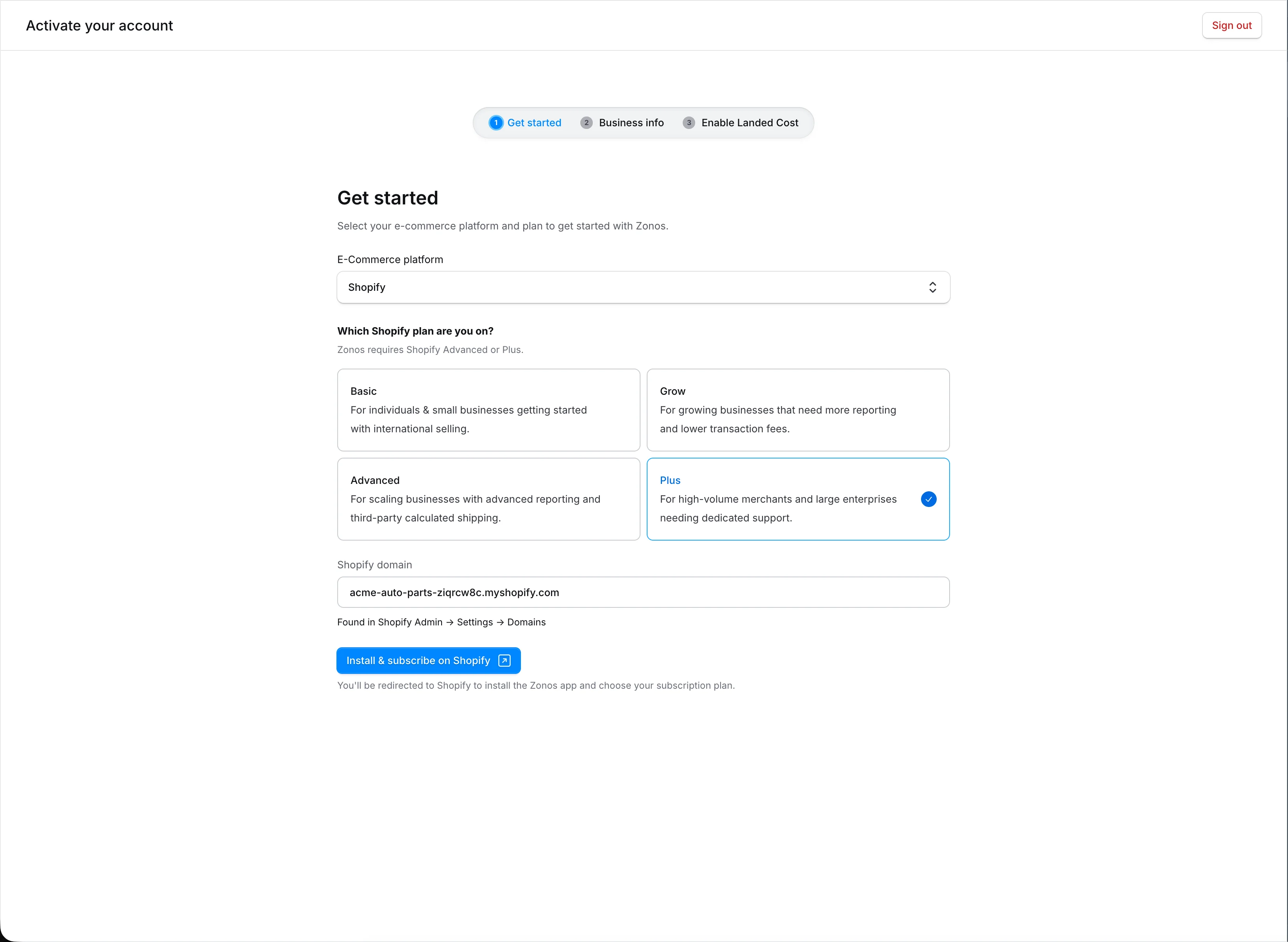
Confirm your business info
- Review the business name, website, phone, and address. Most fields are pre-filled from your Shopify store.
- Add or edit the billing contact and billing address.
- Click Continue.
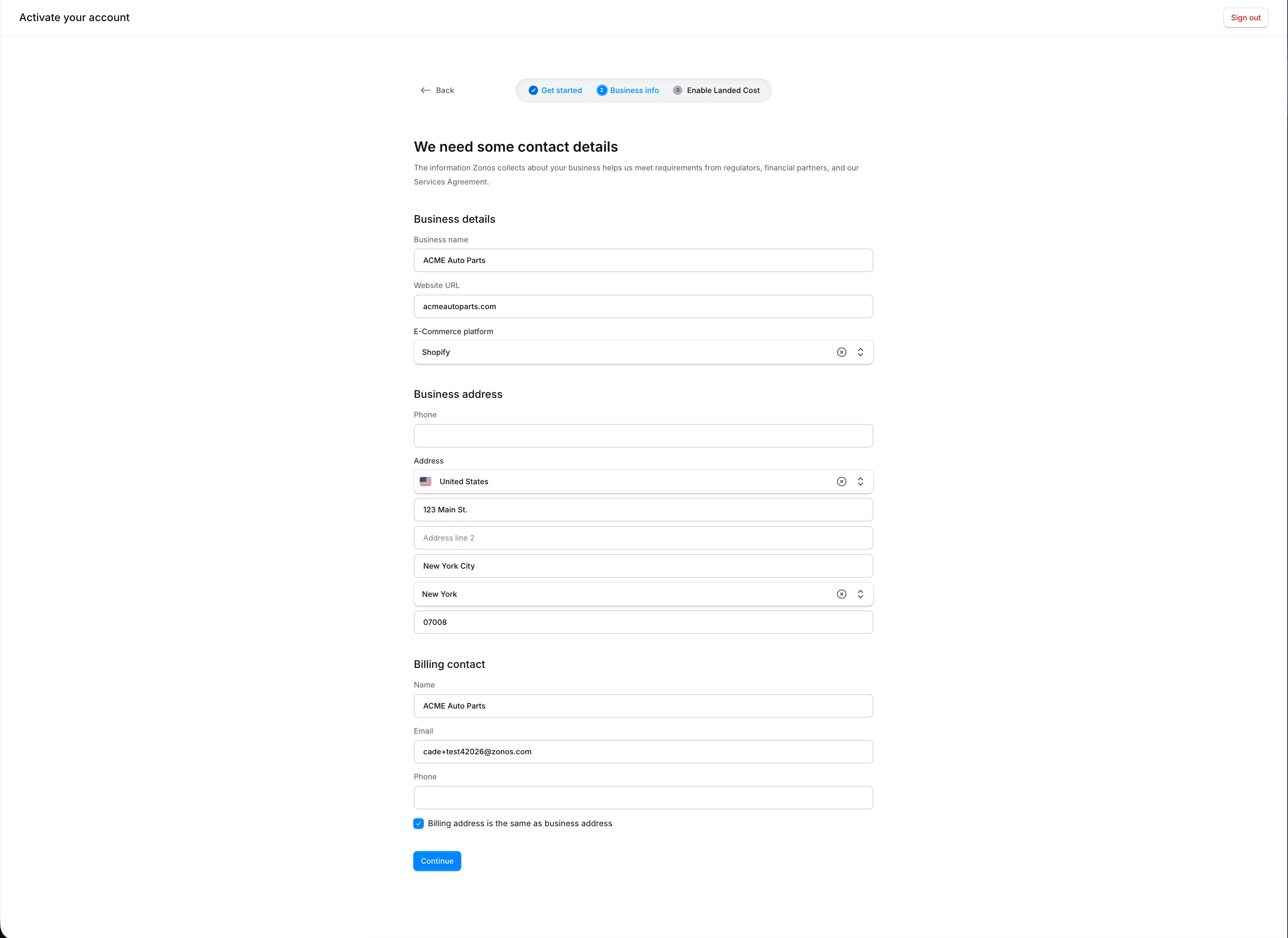
Enable Landed Cost
- Add a payment method for your Zonos invoices. Card or ACH are both supported.
- Click Continue.
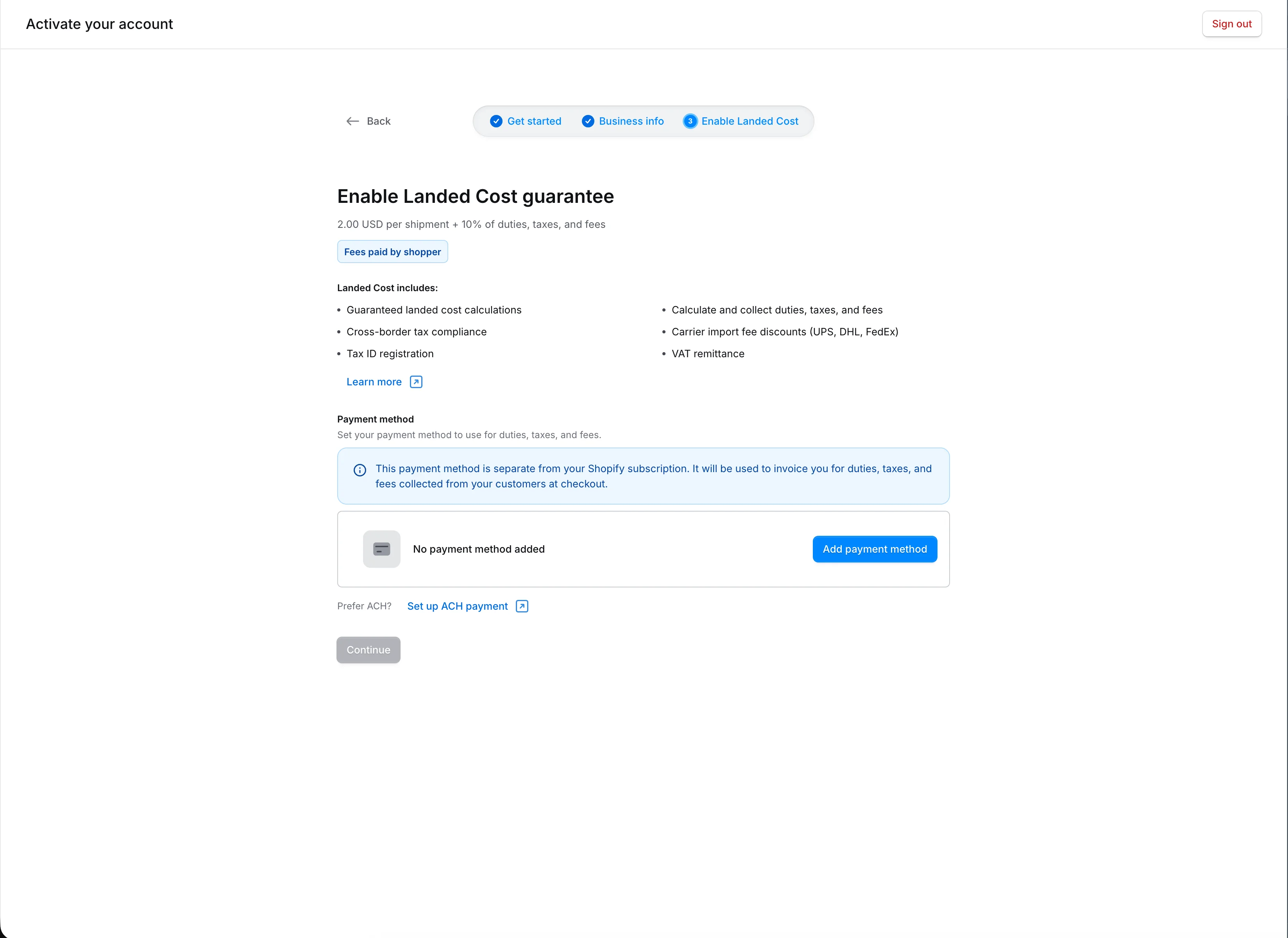
Complete your setup
After the wizard, your dashboard shows an activation checklist with any remaining steps — like connecting a carrier or setting up shipping zones. Most items complete automatically as you work through them.
Test your integration
- Add item(s) to your cart. We recommend using a higher value (above the de minimis) to ensure that duties and taxes will be due for the order.
- Click Checkout.
- Add an international address to your checkout. (Note: If you are connected to an API for shipping rates, you will need to use a real address or you will not get quotes back.)
- Click Continue to shipping.
- If set up correctly, you will see Zonos quotes (including duties and taxes) in your shipping methods offered.
What product information should I provide for the most accurate quote on duties, taxes, and shipping costs?
Product information can impact the amount of duties and taxes due and the shipping cost. The more product information you provide to Zonos, the more precise the quote returned will be. Zonos can generate a quote even when this information is unavailable, but recommends providing the following key product details to improve accuracy:
- Weight: Weight impacts your shipping cost, which can affect duties or taxes. Weights in your Shopify product listings are automatically used by Zonos when present.
- Dimensions: Dimensions may impact your shipping cost, which can affect duties or taxes. Shopify cannot send product dimensions to Zonos so they must be added using Zonos Catalog.
- HS codes: HS codes impact duty rates and can sometimes affect taxes. Zonos can use the HS codes set in your product listings in Shopify if they are available.
- Country of origin: A product's country of origin impacts duty rates and may affect taxes. The country of origin set in your Shopify product listings is automatically used by Zonos when present.
Product details passed to Zonos by Shopify
| Product details↕ | Weights↕ | Dimensions↕ | HS code↕ | Country of origin↕ |
|---|---|---|---|---|
| Automatically passed | ||||
| Add with Catalog |
Note: Alternatively, you can enter any of the above info into Catalog, overriding the information stored and passed from Shopify.
Learn more about product info by platform.
Can Zonos manage remitting and filing U.S. sales tax?
Yes, international Shopify merchants shipping to the U.S. can use Zonos' co-operator model to calculate, remit, and file U.S. sales tax under Zonos' tax IDs.
Get started with Zonos for Shopify
Create your Zonos account and let the setup wizard walk you through installing the app and going live.
With Zonos for Shopify, you can show duties, taxes, and brokerage fees at checkout with the carriers and service levels of your choice.